

Reliable video converter, editor, and compressor for daily tasks.
6 Workable Ways to Upscale Video to 4K [Proven Effective]

Posted by Aira Lesly Escoto to Edit Video/Audio Apr 17, 2026
When you know how to upscale video to 4K, you can avoid the frustration of playing a video you downloaded or captured only to find out it is low quality. Aside from that, you can also prevent your video from appearing too small or stretched on a screen due to resolution incompatibility. So, how to upscale a video’s quality to 4K? Well, to find that out, continue reading this post, as it features six easy ways to upscale video to 4K resolution for free using various devices! Explore them now.
Guide List
Upscale All Kinds of Video to 4K with an AI Tool How to Upscale Video to 4K in Premiere Pro 3 Free Tools to Upscale Videos to 4K Online Upscale Video to 4K on iPhone/AndroidUpscale All Kinds of Video to 4K with an AI Tool
If you prefer a quicker yet delivers an amazing output to upscale low-quality video to 4K, then consider using 4Easysoft Total Video Converter. This Windows and Mac-compatible tool doesn’t let you do the manual way of upscaling a video, which is quite tedious and invites errors. This one supports a video enhancer feature that is powered by an AI. Yes, you read it right! This feature enables you to get a superb video quality (4K) automatically with the help of its highly advanced AI. Aside from that, it can also optimize the brightness of your video and its contrast, remove dirt-like noises to make it look cleaner, and stabilize it, all with the help of AI!
Equipped with a Video Upscaler tool in its Toolbox, allowing you to get your desired resolution, including 1080P and 4K.
Support AI Technologies so you enhance video, apply filters, remove dirty noise, and more with artificial intelligence.
Enable you to adjust video settings, such as the Resolution, Quality, and Aspect Ratio, before exporting your created video.
Offer a preview function, so you can monitor all changes you apply to your video.
100% Secure
100% Secure
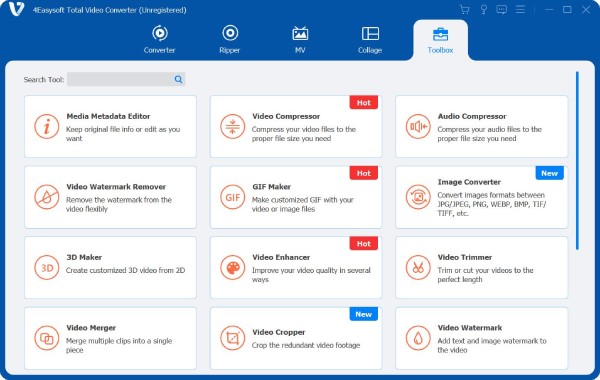
Step 1Install the 4Easysoft Total Video Converter on your Mac or Windows and launch it afterward. After that, click the "Toolbox" tab and look for "Video Enhancer" and select it.
Step 2Next, click the "Add" icon to import the video you wish to upscale to 4K. After that, from the options, tick the "Upscale Resolution" option’s checkbox to select it.
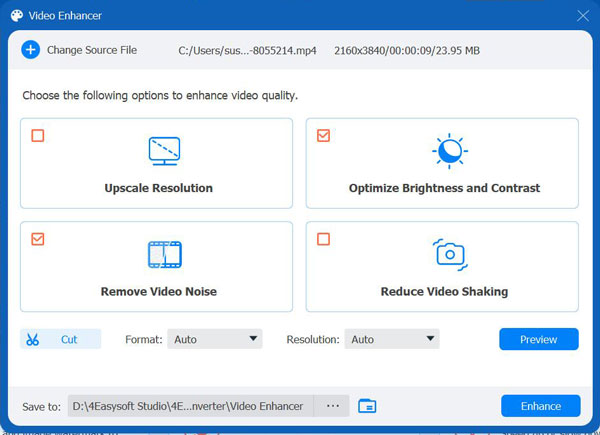
Step 3Then, navigate to the "Resolution" options and select the "380x2160" to upscale the video to 4K resolution. Once done, choose a specific target folder to store the upscaled video.
Step 4Once done, click the "Enhance" button to start the video upscaling process. And that’s it! That’s how you utilize this tool to upscale video to 4K with AI.
100% Secure
100% Secure
How to Upscale Video to 4K in Premiere Pro
Aside from the first featured solution, you can also use Adobe Premiere Pro to improve video quality to 4K. Although compared to the first featured tool, Adobe is a professional editing tool and may feel intimidating at first, it offers a reliable way to improve lower-resolution footage through its built-in sequence and export settings. How to upscale video to 4K with Premiere Pro? Here are the steps you need to go after:
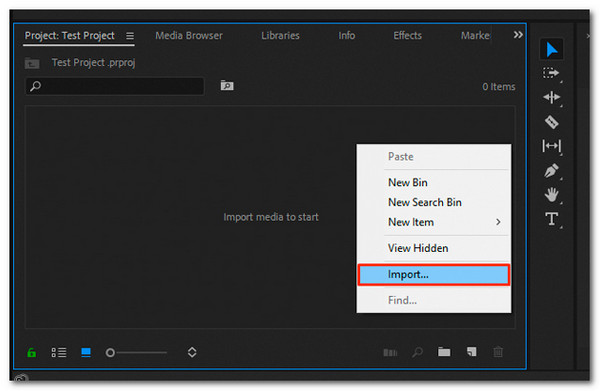
Step 1Open Adobe Premiere Pro and create a New Project. After that, click "File" and select the "Import" option to upload the video you want to upscale.
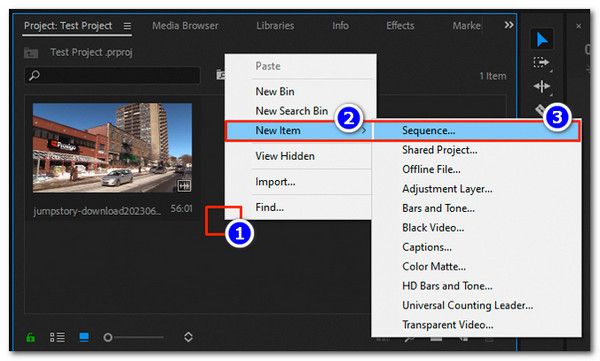
Step 2Next, create a new sequence and adjust its settings to 3840 × 2160 resolution. Just right-click an empty area within the "Project" panel, select "New Item", and choose "Sequence". Ensure your video matches the original frame rate (30fps or 60fps) for smooth, natural playback.
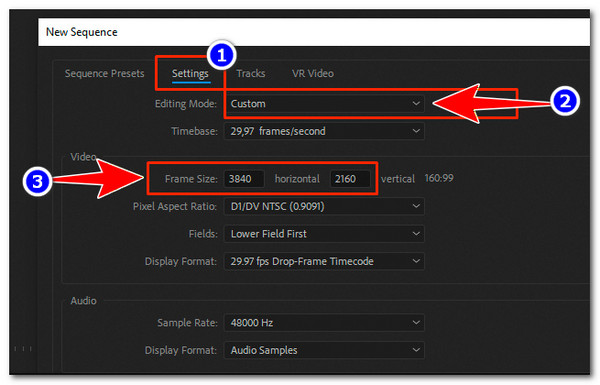
Step 3Then, click "New Sequence" to open the sequence panel. You can leave the preset as the default. Then, go to the "Settings" tab, set "Editing Mode" to "Custom", and enter 3840 horizontal × 2160 vertical in "Frame Size" for a 4K sequence.
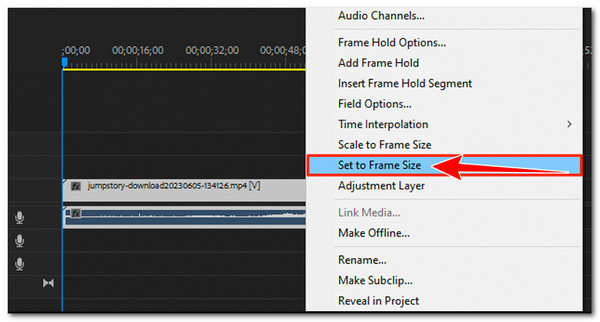
Step 4After that, drag and drop the video you previously imported to the 4K sequence. Then, right-click the clip in the timeline and choose "Set to Frame Size" so the video automatically fits the 4K canvas properly without stretching issues.
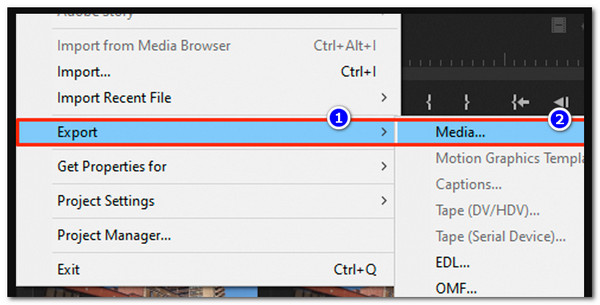
Step 5When finished, open the "Export" window, set the output resolution to 3840 × 2160, enable "Use Maximum Render Quality", and click "Export" to start the 4K upscaling process.
3 Free Tools to Upscale Videos to 4K Online
If you find Adobe Premiere Pro to be too overwhelming as a 1080p to 4K video upscaler solution, consider trying these web-based tools, as they are much easier to use.
1. Picwand AI
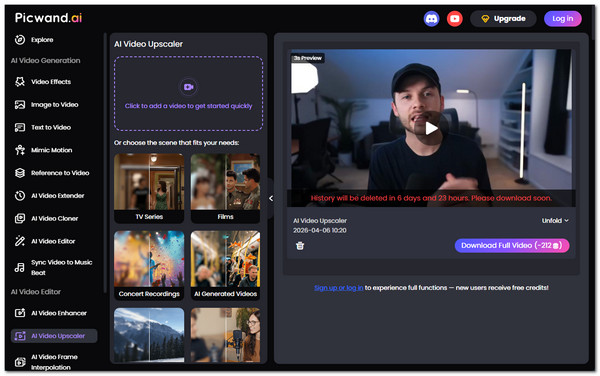
The first online tool in this list is Picwand AI. This one is an online AI-powered tool that lets you easily upscale videos to 4K. You simply upload your video, and the AI automatically enhances details, colors, and clarity while preserving the original aspect ratio. Or you can change the video aspect ratio flexibly. However, this is not totally free, and it requires you to purchase an upgraded version for a full experience:
Step 1Visit Picwand’s official website and import the video you wish to upscale by clicking the "Video with plus icon".
Step 2Once imported, the tool will automatically initiate the upscaling process with the use of its advanced AI.
Step 3When finished, you can play the video for 3 seconds to see how it looks. If you are satisfied with it, click the "Download Full Video" to save it on your device.
2. Fotor
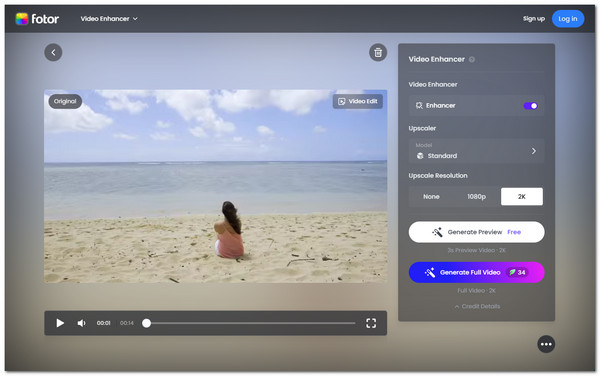
Another online tool you can use to upscale video to 4K online for free is Fotor. The same goes for Picwand; this online video quality enhancer also utilizes AI to automatically analyze and enhance each frame to increase clarity, sharpen details, reduce blur and noise, and improve overall quality. What makes it different is that it supports the option to edit a video. However, it is also not completely free and requires you to sign up for an account.
Step 1Go to the Fotor official website and import the video that you want to be upscaled by clicking the "Upload Video" or dragging it to the tool’s interface.
Step 2Next, toggle on the "Enhancer" and select the highest resolution offered for your video (2K or 4K) and click "Generate Full Video" to start the upscaling process.
Step 3Once done, you can immediately download the upscaled video to save it on your device.
3. Neutral.love
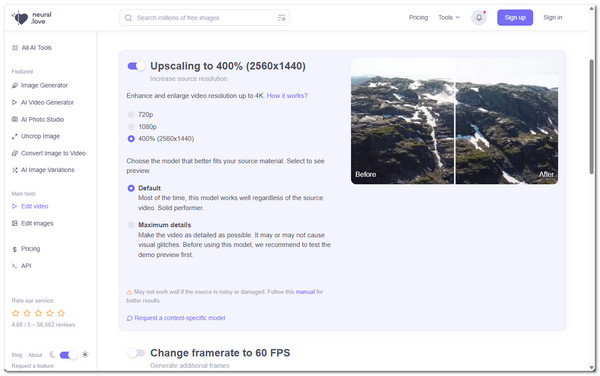
The last online tool you can use to upscale video to 4K for free is Neutral.love. This one makes your videos clearer and sharper by automatically improving details, reducing blur, and smoothing motion. Unlike basic upscalers, it also offers features like noise reduction and frame interpolation so that you can enhance overall video quality, not just resolution.
Step 1Access Neutral.love’s webpage and click "Upload video" to import the video file you want to be upscaled.
Step 2Once imported, select the 4K resolution, and set the following settings based on your preferences. Once done, click the "Process video from…" button to start upscaling it.
Step 3After the video is upscaled, you can download it immediately to save it on your device. And that’s it!
Upscale Video to 4K on iPhone/Android
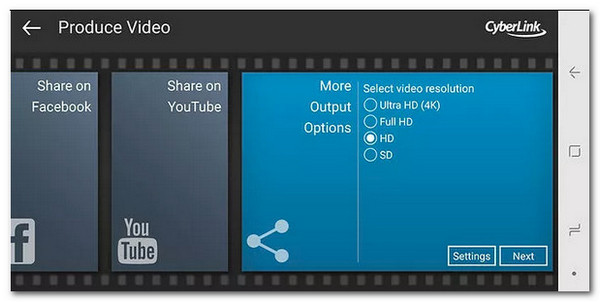
If you prefer to upscale your video by just using your Android or iOS phone, this post recommends using the PowerDirector app, as it provides you with all the features needed to upscale a video’s quality. The app lets you easily import your clips, enhance resolution, and adjust colors and sharpness. It also supports exporting videos in high resolutions, including 4K. Now, how to enhance video to 4K using PowerDirector? Follow these steps:
Step 1Launch the PowerDirector app on your phone. After that, tap the "New Project" button and then select an aspect ratio.
Step 2Next, import the video you wish to be upscaled. You can also upload multiple videos and just clip them together.
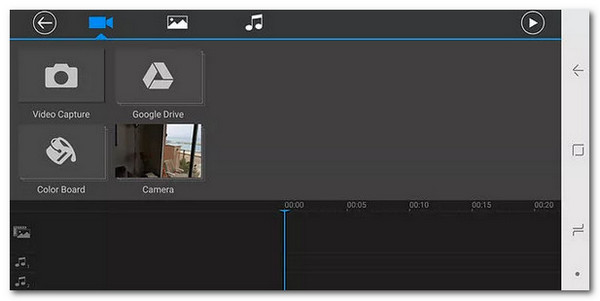
Step 3After that, you can now perform simple editing on your video. Once done, select your desired resolution, like clicking the radio button of "Ultra HD (4K)". And that’s it!
Conclusion
Now that you know how to upscale video to 1080P or 4K, it is easier for you to prevent the possible frustration of playing a video that is of low quality. It will also be easier for you to prevent your video from appearing too small or stretched on a screen due to resolution incompatibility. All the featured solutions above are effective and will help you. However, among these solutions, only the 4Easysoft Total Video Converter can give you the best service and output. Visit this tool’s official website and see how it works!
100% Secure
100% Secure
